IMPORTANT U-VERSE UPDATE

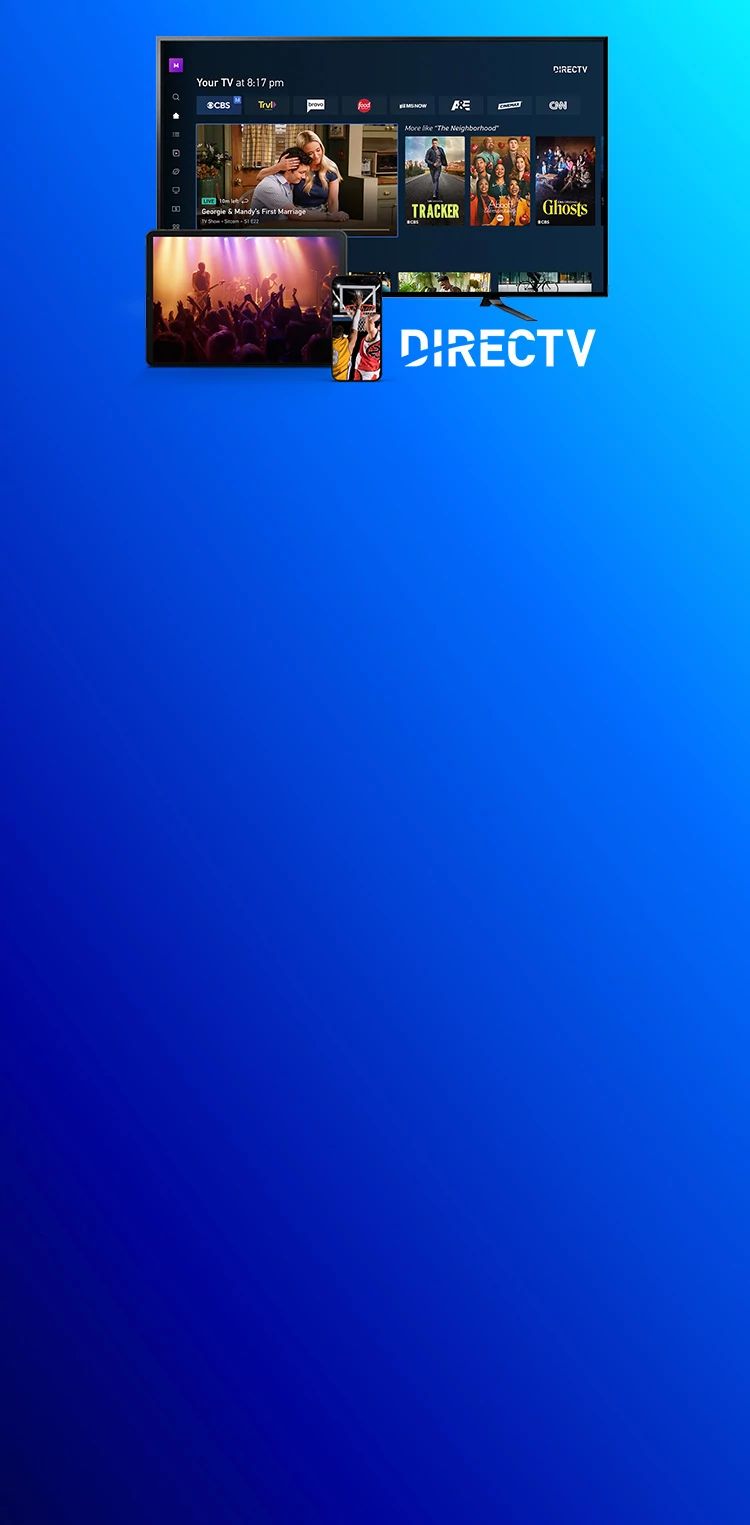
DIRECTV streaming interface displayed on a TV, tablet, and smartphone against a blue background.

EXPLORE DIRECTV

Sit back, relax, and enjoy all your TV together

While existing customers can still use U-Verse TV, new customers can experience great TV through DIRECTV. Stop stressing and start accessing Live TV, On Demand and streaming apps, in one place.*
*Req’s additional paid subscriptions for 3rd party apps. High speed internet-connected Gemini device required.
Smiling couple sitting on the floor in a new home, looking at a tablet with moving boxes nearby.

Existing U-verse TV customer?

You can access your U-verse account with the myAT&T app  available for smartphones & tablets, or online with a web browser. Once you sign in, you'll be able to manage your account, pay bills, view bills, and more. Or visit the U-verse TV support site for more information.

channel-logos
Need Support?

Learn how to program your remote, find channel guides, and fix common problems.

Frequently asked questions

We’re here to help you get the most from your DIRECTV experience.

Login and Account Settings

  • When you first launch the U-verse TV app, you must enter your U-verse login ID and Password. The ID and password are the same ID and password as your AT&T High Speed Internet account (which is the same as your e-mail account provided for AT&T High Speed Internet service).
  • Yes, members of the same U-verse TV account can access and play content at the same time.
  • Yes, sub accounts can access U-verse TV.
  • You can manage your cellular data usage by tapping on Cellular Data Setting which is found in the Preferences section of Settings.  You may adjust your cellular data access through the link found within the warning message or in Cellular Data Settings.  You may also choose the frequency in which you receive this warning message.
  • On the Login page, you will find links to: Forgot ID? and Forgot Password?  Select the appropriate link and follow the instructions to either recover or reset them.
  • You can view your U-verse bill by tapping myAT&T App which is found in the Support section of Settings. Subscribers that have already downloaded the separate myAT&T App from the Apple App store will be linked directly to the myAT&T App. Once validated in that App, you can view your bill. You can also access your bill at: https://m.att.com/myatt/.
  • When you first launch the U-verse TV app, you must enter your U-verse login ID and Password. The ID and password are the same ID and password as your AT&T High Speed Internet account (which is the same as your e-mail account provided for AT&T High Speed Internet service).
  • Yes, sub accounts can access U-verse TV.
  • On the Login page, you will find links to: Forgot ID? and Forgot Password?  Select the appropriate link and follow the instructions to either recover or reset them.
  • Yes, members of the same U-verse TV account can access and play content at the same time.
  • You can manage your cellular data usage by tapping on Cellular Data Setting which is found in the Preferences section of Settings.  You may adjust your cellular data access through the link found within the warning message or in Cellular Data Settings.  You may also choose the frequency in which you receive this warning message.
  • You can view your U-verse bill by tapping myAT&T App which is found in the Support section of Settings. Subscribers that have already downloaded the separate myAT&T App from the Apple App store will be linked directly to the myAT&T App. Once validated in that App, you can view your bill. You can also access your bill at: https://m.att.com/myatt/.

Show/Movie Details and Guide

  • The Show/Movie Details page is a central location or hub where everything about a particular show or movie available on U-verse can be found.  The show title, description and details are provided at the top of the page.   You can also take direct action to either view or record that specific show by tapping Record or Watch 
    Find more information about the show’s cast and crew by tapping on that actor’s photo and exploring related shows in which they appeared.  This is found under the Info segment on iPhone or by just scrolling the page on the iPad. Tap Photos for expanded views of scenes from any show.
  • Yes, select Settings, and then Favorites.  Once selected, favorite shows will then appear in the Guide with a heart next to them.  Touching the heart toggles favorites on and off.  By tapping the Favorites Filter icon at the top of the Guide and selecting Favorite Channels Only the Guide will display only your favorite channels.  Find your favorite HD Channels by tapping HD Channels Only as a filtering option.  Or, select both Favorite Channels Only and HD Channels Only to see only your favorite HD channels.
  • To browse the TV Guide, tap the Guide tab.  The Guide will enable you to browse the TV guide listing for your U-verse TV service at home.  You can swipe up and down to scroll through channels in the Guide.  You can also move quickly through channels in the guide using the quick scroll bar on the right.  Either tap or drag to the location in the Guide.  Additionally, you can swipe right or left to change the time being displayed.  The Guide will display what is scheduled to be on within the next 2 weeks.
    Multiple searching and filtering functions are available at the top of the Guide, allowing you to quickly find your favorite shows and channels.        By default, the guide hides SD channels as well as channels that are not viewable on the mobile device.  If you are wanting to set a recording, or learn more about a particular show that is in SD, or on a network that does not allow us to show their content online, simply remove the filter that hides the relevant content.
  • The Show/Movie Details page is a central location or hub where everything about a particular show or movie available on U-verse can be found.  The show title, description and details are provided at the top of the page.   You can also take direct action to either view or record that specific show by tapping Record or Watch 
    Find more information about the show’s cast and crew by tapping on that actor’s photo and exploring related shows in which they appeared.  This is found under the Info segment on iPhone or by just scrolling the page on the iPad. Tap Photos for expanded views of scenes from any show.
  • To browse the TV Guide, tap the Guide tab.  The Guide will enable you to browse the TV guide listing for your U-verse TV service at home.  You can swipe up and down to scroll through channels in the Guide.  You can also move quickly through channels in the guide using the quick scroll bar on the right.  Either tap or drag to the location in the Guide.  Additionally, you can swipe right or left to change the time being displayed.  The Guide will display what is scheduled to be on within the next 2 weeks.
    Multiple searching and filtering functions are available at the top of the Guide, allowing you to quickly find your favorite shows and channels.        By default, the guide hides SD channels as well as channels that are not viewable on the mobile device.  If you are wanting to set a recording, or learn more about a particular show that is in SD, or on a network that does not allow us to show their content online, simply remove the filter that hides the relevant content.
  • Yes, select Settings, and then Favorites.  Once selected, favorite shows will then appear in the Guide with a heart next to them.  Touching the heart toggles favorites on and off.  By tapping the Favorites Filter icon at the top of the Guide and selecting Favorite Channels Only the Guide will display only your favorite channels.  Find your favorite HD Channels by tapping HD Channels Only as a filtering option.  Or, select both Favorite Channels Only and HD Channels Only to see only your favorite HD channels.

Scheduling and Managing Recordings on Your Home DVR

  • You can record a show by first tapping on a show and getting to the Show/Movie Details page.  Tap Record, confirm your settings and tap Record again to set your recording.  Tap Record Series to record the entire series.
  • You can set default DVR Settings by going to Settings on the My U-verse TV page.  Tap Recording Settings found within Preferences.  You can then set default recording options for all individual show and series recordings.
  • You can manage recordings by tapping the Recordings tab. Tap the upcoming show that you wish to change.  From there you can Cancel Recording or Cancel Series.  You may also tap Series Options to add additional time at the end of your recording(s) to ensure you do not miss anything should a show overrun its time period (i.e. sporting events or live programs).  You can also set when the recording(s) will be deleted from your DVR.
  • You can record a show by first tapping on a show and getting to the Show/Movie Details page.  Tap Record, confirm your settings and tap Record again to set your recording.  Tap Record Series to record the entire series.
  • You can manage recordings by tapping the Recordings tab. Tap the upcoming show that you wish to change.  From there you can Cancel Recording or Cancel Series.  You may also tap Series Options to add additional time at the end of your recording(s) to ensure you do not miss anything should a show overrun its time period (i.e. sporting events or live programs).  You can also set when the recording(s) will be deleted from your DVR.
  • You can set default DVR Settings by going to Settings on the My U-verse TV page.  Tap Recording Settings found within Preferences.  You can then set default recording options for all individual show and series recordings.

On Demand Streaming Content

  • You can watch TV shows or movies by tapping the On Demand tab to select from the library of shows available to watch on your mobile device.  You can browse available shows by TV Shows, Movies, Networks or recently Watched.  When you find something that you would like to watch, just tap Watch to begin streaming it on your device.
  • You do not transfer the app.  You must download the U-verse TV App from Apple App Store to your new device and sign in using your U-verse ID and password.
  • If at any time you get interrupted and need to stop watching a show you can easily continue from  where you left off by tapping Watched on the main On Demand page.  There you will find a list of your recently watched shows, along with a progress indicator for each.  Just select a show to continue watching it from where you left off.
  • Streaming rights are within the US only.
  • You can watch TV shows or movies by tapping the On Demand tab to select from the library of shows available to watch on your mobile device.  You can browse available shows by TV Shows, Movies, Networks or recently Watched.  When you find something that you would like to watch, just tap Watch to begin streaming it on your device.
  • If at any time you get interrupted and need to stop watching a show you can easily continue from  where you left off by tapping Watched on the main On Demand page.  There you will find a list of your recently watched shows, along with a progress indicator for each.  Just select a show to continue watching it from where you left off.
  • You do not transfer the app.  You must download the U-verse TV App from Apple App Store to your new device and sign in using your U-verse ID and password.
  • Streaming rights are within the US only.

Live TV

  • Live TV is accessible via the Live TV icon tab found in the Navigation Bar at the top of the page.
  • When a locked, Live TV channel is tapped a lock notification will be displayed in the video player.  A subscriber can unlock the channel by tapping Unlock and entering the account’s Parental Control Pin.  The show will begin playing, momentarily.
  • Yes, Live TV is available on both Wi-Fi and cellular networks.
  • Yes, there are Spanish language shows on U-verse TV.
  • After you tap the Live TV icon you will see a Live TV guide presenting Live TV channel offerings available in your market.
  • To watch a show with Closed Captioning on U-verse TV you will tap the CC icon in the player while the video is playing.  To turn off, tap the CC icon a second time.
  • Upon tapping Live TV the last channel played will begin to play.  Tap another channel row to begin playing the show that is currently airing on that channel.
  • Live TV is accessible via the Live TV icon tab found in the Navigation Bar at the top of the page.
  • Yes, Live TV is available on both Wi-Fi and cellular networks.
  • After you tap the Live TV icon you will see a Live TV guide presenting Live TV channel offerings available in your market.
  • Upon tapping Live TV the last channel played will begin to play.  Tap another channel row to begin playing the show that is currently airing on that channel.
  • When a locked, Live TV channel is tapped a lock notification will be displayed in the video player.  A subscriber can unlock the channel by tapping Unlock and entering the account’s Parental Control Pin.  The show will begin playing, momentarily.
  • Yes, there are Spanish language shows on U-verse TV.
  • To watch a show with Closed Captioning on U-verse TV you will tap the CC icon in the player while the video is playing.  To turn off, tap the CC icon a second time.
Opens in new window