

Set up and activate your DIRECTV satellite equipment
Learn how to set up DIRECTV satellite equipment with a TV, pair remote control, and activate service. Information on how to order new receiver equipment is also included.

Identify the equipment you have and follow the steps provided for each option.
Genie Receiver
How to set up a Genie receiver with a TV.
Connect your Genie HD DVR to your TV
- Place your replacement Genie on top of, or next to, the non-working one.
- Transfer cable connections one at a time to the new Genie, except for the power cord.
- Plug the new power cord into the new equipment.
- Power on the Genie and TV.
Program your remote
- Genie Remote: press and hold the Mute & Enter buttons for 5 seconds
- Universal Remote: press and hold Mute & Select buttons until green LED blinks twice, then enter 9-8-7 on your remote. If successful, the green LED blinks four times.
Set up and activate Genie HD DVR
- Follow the guided steps on-screen to complete setup.
- When the Satellite Dish Setup screen displays, keep the default setting as-is and leave the Order ID field blank.
- Select Continue and follow on-screen instructions.
- Make note of your access card number, receiver ID, and model number for activation; this info is also included on the barcode sticker on the outside of the shipment box.
- Activate your Genie HD DVR receiver via chat or by calling an agent at 877.719.0211.
- Complete your setup by following the guided screens.
Pair existing Genie Mini(s) to your Genie HD DVR
If you have Genie Minis for additional TVs, follow these instructions to pair your Genie Mini receivers.
- Access your replacement Genie and press Menu on your Genie remote.
- Select Settings > Whole-Home > Manage Clients > Add Clients.
- Make note of the PIN that displays; do not dismiss the screen until you’ve entered this PIN for each Genie Mini receiver.
- Go to each Genie Mini receiver in the home page and enter the PIN.
- Select Add a New Location.
- Enter the location name and select Save Name.
- Click Ok.
- To apply your personalized settings, select Copy to mirror settings from an existing Genie receiver in the home.
- Select the receiver location to copy the settings.
- Choose to Watch DIRECTV or Browse The Guide to complete guided setup.
- To apply default settings, select Do Not Copy; choose to Watch DIRECTV or Browse the Guide to complete guided setup.
- Return to the Genie HD DVR and select Done on the Add Client screen.
Pair Wireless Genie Mini(s) to your Genie HD DVR
To pair and clear the 614-error code on your Wireless Genie Mini receiver:
- On the main receiver press Menu on your Genie remote.
- Select Settings > Whole-Home > Manage Clients > Add Clients.
- Make note of the PIN that displays; do not dismiss the screen until you’ve entered this PIN for each Wireless Genie Mini receiver.
- Now go to each Wireless Genie Mini receiver and from the OSD 614 screen select Start Troubleshooting and press Dash (-) on the remote to confirm.
- When error code 928 displays on the Reset screen press 9-8-7-6 on the remote, you should then see Video Bridge Survey Mode Active.
- Wait for the Connect Now label to display.
- Verify the Wireless Signal Strength displays three (3) green bars and select Connect Now; wait for the countdown clock to complete.
- Using your remote, enter the PIN code displayed on your main receiver in the Enter Pin screen on your Wireless Genie Mini.
- Select Replace a Location, choose the receiver you want to remove and select Replace.
- Select Yes, Replace to confirm.
- Return to the Genie HD DVR and select Done on the Add Client screen to exit the PIN.
- Confirm you’ve paired the device by checking you can change the channel.
Congratulations, you have completed this section.
Genie 2 Receiver
How to connect a replacement Genie 2 DVR.
Ensure your Genie 2 is ready to pair; the Add Client button on the receiver blinks green. This may take 3-4 minutes after plugging into power source.
Now go to your nearest TV connected to a Genie Mini or Wireless Genie Mini client and turn on the TV. If you see the Wireless Connection Lost screen, proceed with the steps below, otherwise, jump to the activation steps.
- Select Troubleshooting (or More Information, if shown)
- If a prompt appears to reset the Wireless Genie Mini, press the dash (-) button on the remote control.
- When error code 928 is displayed on the Reset screen, enter 9-8-7-6 on your remote
- Connecting to Video Bridge displays onscreen; if signal quality is good or excellent, select Connect Now
Activation steps
When you see Satellite Dish Setup on screen, it’s time to activate your Genie 2. You can activate your Genie 2 via chat or by calling an agent at 877.719.0211.
Complete set up
Follow the guided screens on the TV to complete set up.
- When the New Location screen appears, select Add a New Location.
- Name the room location and select Save Name.
- On the Copy Settings screen, choose Skip This Step.
- On the Remote Setup screen, click Set Up Remote Later.
- Confirm you’ve paired the device by checking on the Genie Mini you can change the channel.
Pair additional Mini(s) to the Genie 2 server
Go to the next TV with a Genie Mini connected and turn on the TV.
- If the Wireless Connection Lost screen displays, follow the setup instructions from the previous section.
- If not, repeat the instructions to Add a New Location.
Set up the Genie 2 Server (PDF, 179KB)
View PDF
Replace your Genie 2 server
Follow these steps to set up your replacement equipment:
- Place your new Genie 2 next to your old equipment and transfer all cables and cords one at a time, connecting the power cord last.
- Plug the power cord into an electrical outlet.
- Power on your TV.
- Wait 3-4 minutes for the Add Client button at the top of your Genie 2 to start flashing green.
Congratulations, you have completed this section.
Genie Mini
Connect a Genie Mini with a TV and Genie HD DVR
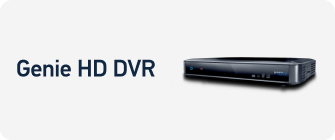
First, connect the Genie Mini to a TV.
- Choose how you want to connect:
- Use an HDMI cable (recommended option) for high-definition (HD) video and Dolby® Digital audio - Plug one end of the cable into the HDMI port on the back of your Genie Mini. Then, plug the other end into the HDMI port on the back of your TV.
- Use a 10-pin Mini-DIN cable for standard-definition (SD) and HD (1080i or 720p) video and audio - Plug the black 10-pin connector into the A/V Out port on the back of your Genie Mini. Then, plug the other ends of the cable(s) into the corresponding-colored input ports on the back of your TV.
- Connect the power cord to the Genie Mini and plug it into an electrical outlet.
- Turn on the Genie Mini and the TV.
Next, pair the Genie Mini with your Genie (HR44, HR54) HD DVR
- Press Menu on your Genie remote.
- Select Settings > Whole-Home > Manage Clients > Add Clients.
- Write down the PIN displayed on the screen. Leave this screen as is - Do not select Done.
- Return to the TV where you connected the Genie Mini.
- Use the remote to select Continue and enter the PIN when prompted.
- Select Add a New Location.
- Enter a room location name and select Save Name.
- Select OK to confirm.
- Choose a setup option:
- Copy - If you want to mirror the settings from an existing Genie/Genie Mini in your home. Then, select the location you want to copy.
- Don’t Copy - If you want the default DIRECTV settings added to your new Genie Mini.
- Select Watch DIRECTV or Browse the Guide to complete the guide setup.
- Go back to the TV connected to the main Genie HD DVR and select Done.
- Confirm you’ve paired the device by checking on the Genie Mini you can change the channel.
Activate your Genie Mini receiver
Activate online or by calling the automated activation line:
- Go to your My equipment & services page. You’re prompted to sign in before proceeding.
- Under Pending Receivers, select Activate receiver.
- Follow the prompts to activate.
- Select Continue to complete.
Note: If unable to activate online, call us at 877.719.0211 for additional help.
Program your remote control (if needed)
If prompted to program your remote control, follow the on-screen instructions or visit program your DIRECTV remote control.
Congratulations, you have completed this section.
Connect a Genie Mini with a TV and Genie 2 (HS17) HD DVR
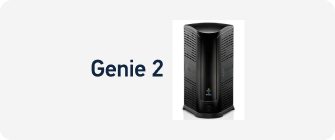
First, connect the Genie Mini to a TV.
- Choose how you want to connect:
- Use an HDMI cable (recommended option) for high-definition (HD) video and Dolby® Digital audio - Plug one end of the cable into the HDMI port on the back of your Genie Mini. Then, plug the other end into the HDMI port on the back of your TV.
- Use a 10-pin Mini-DIN cable for standard-definition (SD) and HD (1080i or 720p) video and audio - Plug the black 10-pin connector into the A/V Out port on the back of your Genie Mini. Then, plug the other ends of the cable(s) into the corresponding-colored input ports on the back of your TV.
- Connect the power cord to the Genie Mini and plug it into an electrical outlet.
- Turn on the Genie Mini and the TV.
Next, pair the Genie Mini with your Genie 2 HD DVR
- Select Replace A Location, choose the receiver/client you want to remove and select Replace.
- Select Yes, Replace to confirm.
- Confirm you’ve paired the device by checking on the Genie Mini you can change the channel.
Note: The new Genie Mini may display a flashing red LED and the screen may flash gray intermittently during this setup step.
Activate your Genie Mini receiver
Activate online or by calling the automated activation line:
- Go to your My equipment & services page. You’ll be prompted to sign in before proceeding.
- Under Pending Receivers, select Activate receiver.
- Follow the prompts to activate.
- Select Continue to complete.
Note: If unable to activate online, call us at 877.719.0211 for additional help.
Program your remote control (if needed)
If prompted to program your remote control, follow the on-screen instructions or visit program your DIRECTV remote control.
Congratulations, you have completed this section.
Wireless Genie Mini
Connect a Wireless Genie Mini to your Genie (HR44, HR54) HD DVR
Replacement and set up instructions
- Place your replacement Wireless Genie Mini next to your old Wireless Genie Mini.
- Move all cables one at a time from the old device to the new one, except for the power cord.
- Plug the power cord into the replacement equipment, then into an electrical outlet. If the receiver doesn’t automatically turn on, press the Power button.
- Turn on your TV. The Connecting to Video Bridge displays.
- Go to the TV connected to your Genie HD DVR to begin setup. You may need your serial number, MAC address, and model number. You can find this information on the barcode sticker on the outside of the shipping box.
- On your remote, press Menu.
- Select Settings > Whole-Home > Manage Client > Add Clients.
- Write down the PIN that displays on screen.
- Leave the Genie HD DVR on this screen until the setup of the Wireless Genie Mini is complete.
- Now go to each Wireless Genie Mini receiver and from the OSD 614 screen select Start Troubleshooting and press Dash (-) on the remote to confirm.
- When error code 928 displays on the Reset screen press 9-8-7-6 on the remote, you should then see Video Bridge Survey Mode Active.
- Return to the Wireless Genie Mini location, wait two minutes or until Connect Now is active.
- The Wireless Signal Strength icon should display three green bars.
- Select Connect Now. The Enter PIN screen displays after the connection countdown.
- Using your remote, enter the PIN from step 8.
- Select Replace a Location and choose the client/receiver you are replacing.
- Select Replace > Yes, Replace to confirm your choice. The Wireless Genie Mini may display a flashing red LED, and the screen may flash gray intermittently during this setup step.
- Return to the Genie HD DVR.
- On the Add a Client screen, select Done.
- Confirm you’ve paired the device by checking on the Genie Mini you can change the channel.
Activate your Wireless Genie Mini receiver
Activate online or by calling the automated activation line:
- Go to your My equipment & services page. You’ll be prompted to sign in before proceeding.
- Under Pending Receivers, select Activate receiver.
- Follow the prompts to activate.
- Select Continue to complete.
Note: If unable to activate online, call us at 877.719.0211 for additional help.
Program your remote control (if needed)
If prompted to program your remote control, follow the on-screen instructions or visit program your DIRECTV remote control.
Congratulations, you have completed this section.
Connect a Wireless Genie Mini to your Genie 2 (HS17) HD DVR
- Place your replacement Wireless Genie Mini next to your old Wireless Genie Mini.
- Move all cables one at a time from the old device to the new one, except for the power cord.
- Plug the power cord into the replacement equipment, then into an electrical outlet. If the receiver doesn’t automatically turn on, press the Power button.
- Turn on your TV. The Connecting to Video Bridge will display.
- Next, go to the Genie 2 HD DVR server and press and release the Add Client button on the top of the tower. The button will flash Green. (Note: The Add Client button times out in 20 minutes – if more time is needed, press it again.)
- Now go to the Wireless Genie Mini receiver and from the OSD 614 screen select Start Troubleshooting and press Dash (-) on the remote to confirm.
- When error code 928 displays on the Reset screen press 9-8-7-6 on the remote, you should then see Video Bridge Survey Mode Active.
- On the Connect to Video Bridge screen if the signal quality is good or excellent, select Connect Now. If not, try moving it closer to the Genie 2 tower.
- Select Replace a Location, then choose the receiver/client you want to remove.
- Select Replace > Yes, Replace to confirm. (Note: The new Genie Mini may display a flashing red LED and the screen may flash gray intermittently during this setup step.)
- Guided setup complete - select Watch TV.
- Confirm you’ve paired the device by checking on the Genie Mini you can change the channel.
Activate your Wireless Genie Mini receiver
Activate online or by calling the automated activation line:
- Go to your My equipment & services page. You’ll be prompted to sign in before proceeding.
- Under Pending Receivers, select Activate receiver.
- Follow the prompts to activate.
- Select Continue to complete.
Note: If unable to activate online, call us at 877.719.0211 for additional help.
Program your remote control (if needed)
If prompted to program your remote control, follow the on-screen instructions or visit program your DIRECTV remote control.
Congratulations, you have completed this section.
Congratulations, you have completed this section.
Gemini device over wireless
Connect your Gemini device (Wireless) to your Wireless network
Once you have your Gemini device, power supply, HDMI cable, and remote out of the box:
- If this is a replacement device, disconnect your current device, HDMI cord and power supply and set aside – including the remote.
- Plug the HDMI cable into your device and the other end into your TV.
- Plug the power supply into the new device and plug the other end into an outlet.
- Power on your TV. You may need to switch your TV source input to match the HDMI port you plugged the Gemini device into.
- Remove the battery slip from the back of the remote control.
- Follow the on-screen prompts. This includes the following:
- Pair your remote by pointing it at the device.
- Press the Fast Forward and Rewind buttons for 2-3 seconds at the same time; when paired, a confirmation screen displays.
- Select your Wireless network and enter the password; once connected, your device checks for updates and may automatically restart. (This may take a few moments)
- Review and accept Terms & Conditions.
- Select or enter the room location for this device.
- Enter your Google ID and password, if you have one. Learn more about Google Assistant
- Confirm connection is complete by attempting to change the channel.
Heads up: If your Google Account has two-step verification, please check for an approval message from Google regarding this Gemini device.
Use voice control on your remote
Google Assistant makes it easier than ever to watch what you want, when you want. Just press and release the MIC/voice button on your remote and wait for solid blue lights. Then, say what you want to do:
- Go to a channel or show - say Tune to TNT
- Turn closed captions on or off - say Turn on (or off) closed captions
Learn more about connecting your Genie receivers to the internet
Congratulations, you have completed this section.
Gemini device over wired connection
Connect your Gemini device (wired)
Take your Gemini device, power supply, HDMI cable, and remote out of the box. Be sure to use the new cables provided with your new device to experience optimal viewing.
- Unhook the HDMI cord, coaxial cable and power cord from your current device and put the device, HDMI cord, power supply, and old remote aside; do not disconnect the end of the coaxial cable connected to the wall.
- Connect the coax cable you just disconnected from your old device to the ethernet coax adaptor; hand-tighten to ensure a snug fit.
- Connect one end of the ethernet cable to your new device and the other end of the ethernet cable to the ethernet coax adaptor.
- Connect the small end of the micro-USB cable to the ethernet coax adaptor; the plastic tab on the adaptor may need to be moved to access the micro-USB port.
- Plug the other end of the HDMI cable into your TV.
- Plug the other end into an outlet.
- Power on your TV. You may need to switch your TV source input to match the HDMI port you plugged the Gemini device into.
- Remove the battery tag from the back of the remote.
- Follow the prompts to complete setup; this includes:
- Pairing your remote by pointing it at the device.
- Press the Fast Forward and Rewind buttons for 2-3 seconds at the same time; when paired, a confirmation screen displays.
- Review and accept Terms & Conditions.
- Select or enter the room location for this device.
- Enter your Google ID and password, if you have one. Learn more about Google Assistant
- Confirm connection is complete by attempting to change the channel.
Heads up: If your Google Account has two-step verification, please check for an approval message from Google regarding this Gemini device.
Use voice control on your remote
Google Assistant makes it easier than ever to watch what you want, when you want. Just press and release the MIC/voice button on your remote and wait for solid blue lights. Then, say what you want to do:
- Go to a channel or show - say Tune to TNT
- Turn closed captions on or off - say Turn on (or off) closed captions
If your Gemini device doesn’t automatically connect
Connecting your new Gemini device to your DIRECTV network and main Genie server (HR44/HR54 models).
You may need to go to your main Genie receiver to get a 4-digit PIN to connect your Gemini device to your network:
- On the main receiver, press MENU on the Genie remote and go to Settings > Whole-Home > Manage Clients > Add Client
- Follow on-screen prompts, including pressing the DASH (-) to get your 4-digit PIN
- The 4-digit PIN is entered on your new Gemini receiver screen
Connecting your new Gemini device to your DIRECTV network with a Genie 2 server (HS17 model):
- Go to your Genie 2 receiver and press the Add Client button on the top of the tower
- Return to your Gemini receiver and follow the on-screen prompts
Learn more about connecting your Genie receivers to the internet.
For additional assistance with your Gemini device, please call 844.315.1917.
Congratulations, you have completed this section.
Non-Genie Receiver
Learn how to set up a replacement non-Genie receiver with a TV.
Receiver replacement, setup, and activation
If you received a replacement Genie DVR or receiver, learn how to connect it.
Replace receivers
- Place your new receiver next to your non-working receiver with both backs towards you.
- One by one, disconnect and remove each cable from the back of your old receiver; the only cord you don't need to transfer is the old power cord.
- Connect the new power cord to the new receiver and plug into an electrical outlet.
- Power on your replacement receiver and your TV.
Set up and activate your receiver
- On your remote, press and hold Menu and Select, the green LED blinks twice.
- Enter 9-8-1 on your remote, the green LED blinks 4 times and the Satellite Dish Setup screen displays on your TV.
- Keep the default settings as they are.
- Leave the Order ID field blank.
- Select Continue and follow all instructions.
- Activate your receiver via chat or by calling an agent at 877.719.0211.
- If needed, a prompt to program your remote control appears. Follow the onscreen directions or the steps in the article Program a remote control.
Congratulations, you have completed this section.