
How to fix a "Low Storage" error message on DIRECTV Gemini Devices
Too many apps on your device can keep it from updating and may eventually make it stop working.

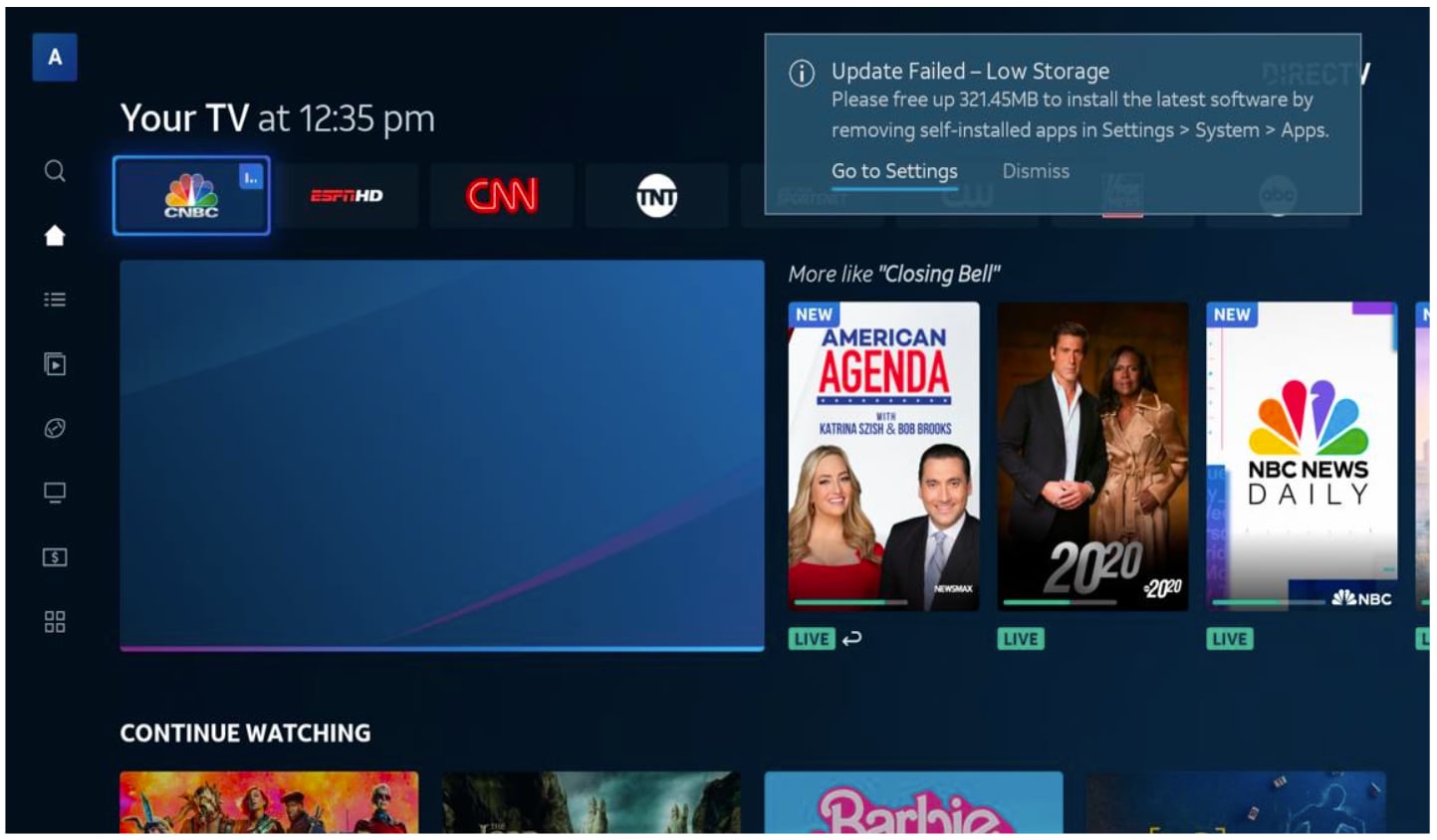
If you use a DIRECTV Gemini device and get a message on your TV that says "Update Failed - Low Storage" it's important to fix the issue as soon as you can.
If you dismiss the warning, it will show up every three days and ignoring it for too long may make your Gemini stop working altogether.
How to fix it
When you get the "Low Storage" message on your TV, it means you don't have enough storage to download the latest software update to your Gemini device and will need to delete aps that you or your family installed (some apps are pre-installed on the Gemini and can't be removed).
Here's how:
- Check the error message on your TV. It will tell you exactly how many megabytes (MB) of space you need to remove.
- Go to System Settings> All Apps. App sizes in MB are shown next to each app.
- Make sure the apps you plan to remove add up to the total number of MB shown in the error message.
- For each app you want to remove, select "Uninstall" then select "OK" to confirm you want to remove it.
- When you are done removing apps, you can continue to watch TV.
- When you are done watching for the day, press "Off" on your remote.
- That's it! When you turn your TV back on, it should work normally. If for some reason the update wasn't successful, you'll get another message asking if you want to update now or wait for later.
Heads Up: Pre-loaded and interactive DIRECTV apps cannot be uninstalled. These pre-installed apps include (but may not be limited to): Apple TV, Discovery Plus, Disney +, ESPN, HBO Max, Hulu, Netflix, Pandora, Peacock TV, Prime Video, Google Play Store, Google Play Games, Great Games by Play, Works, Local Now, YouTube, and YouTube Music.