
Explore DIRECTV's "Your TV" menu carousel
The Your TV carousel combines all of DIRECTV’s best features in one spot. You can find recent channels, favorite team sports content, live stats, recommended Live and On Demand content all in one place!

Your TV is available across all devices, except on mobile, tablet and web.
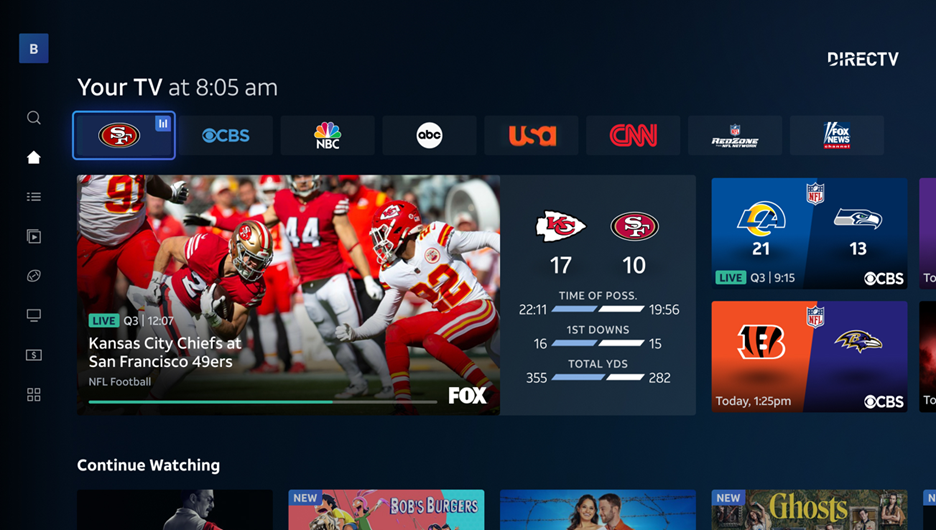
Note: For customers that stream DIRECTV without a Satellite dish, the channels and recommendations presented are personalized to the selected User Profile indicated by the avatar (top left). User Profiles on DIRECTV via Internet
How to navigate Your TV
- The top row of Your TV carousel includes a mix of your recently watched channels, favorited teams' live games and recommended live content.
- A live video tile previews current programming from the channel or team logo highlighted, as you hover over icons the live preview changes.
- To tune to full-screen video, you can either press OK on your remote when hovering over a channel or team logo or press OK when hovering over the live video tile.
- If no channel selection is made after a period of time the screen defaults to the full-screen video of the channel last highlighted.
- Scroll down to see other carousels including pick up where you left off and continue watching My Library or select apps, as well as recommended movies to purchase or rent.
How to manage Sports in Your TV
- When your favorited team has a live game on a channel in your package, you'll see the team logo in the top row.
- Hover over the team logo, and you'll see real time scores and stats, and you'll automatically tune to the channel.
- Not all sports or teams present live scores and stats.
- Spoiler alert! If you don't want to view the scoreboard you can disable live scores in the Settings menu, navigate to Preferences, then Show Game Scores.
Additional information
How do I access recent channels when in full screen mode?
Ten of your most recent channels can always be access while in full screen video by simply pressing the Up button on your remote.
How can I quickly get to the Guide?
To see the full channel options within your package, select Guide from the left menu, or press Guide on your DIRECTV remote.
How can I change my device to start on full screen video?
- You can choose when you turn on your device to launch to the full screen video of the last channel watched instead of the home screen and Your TV.
- Gemini/Gemini Air: go to Settings, navigate to Preferences, then Start at Home.
- For compatible devices such as Roku, Fire TV, Apple TV and Android TV: in the DIRECTV app, go to Settings, navigate to Preferences, then Start at Home.